
How to create a WhatsApp template message
Write a message, add a personal touch with variables and send it to Meta for approval.
Templates and campaigns4 steps·4 min read
- 1
- 2
Name, category and language
Use a lowercase name with underscores (for example
order_shipped). Pick Utility for order and account updates, Marketing for offers. Choose the language you write in. - 3
Write the message
Add an optional header, then the body. Click Add Variable to insert
{{1}}where the customer's name or order number should go, and give a sample value for each variable. The preview on the right shows what customers will see.app.swiftcampaigns.com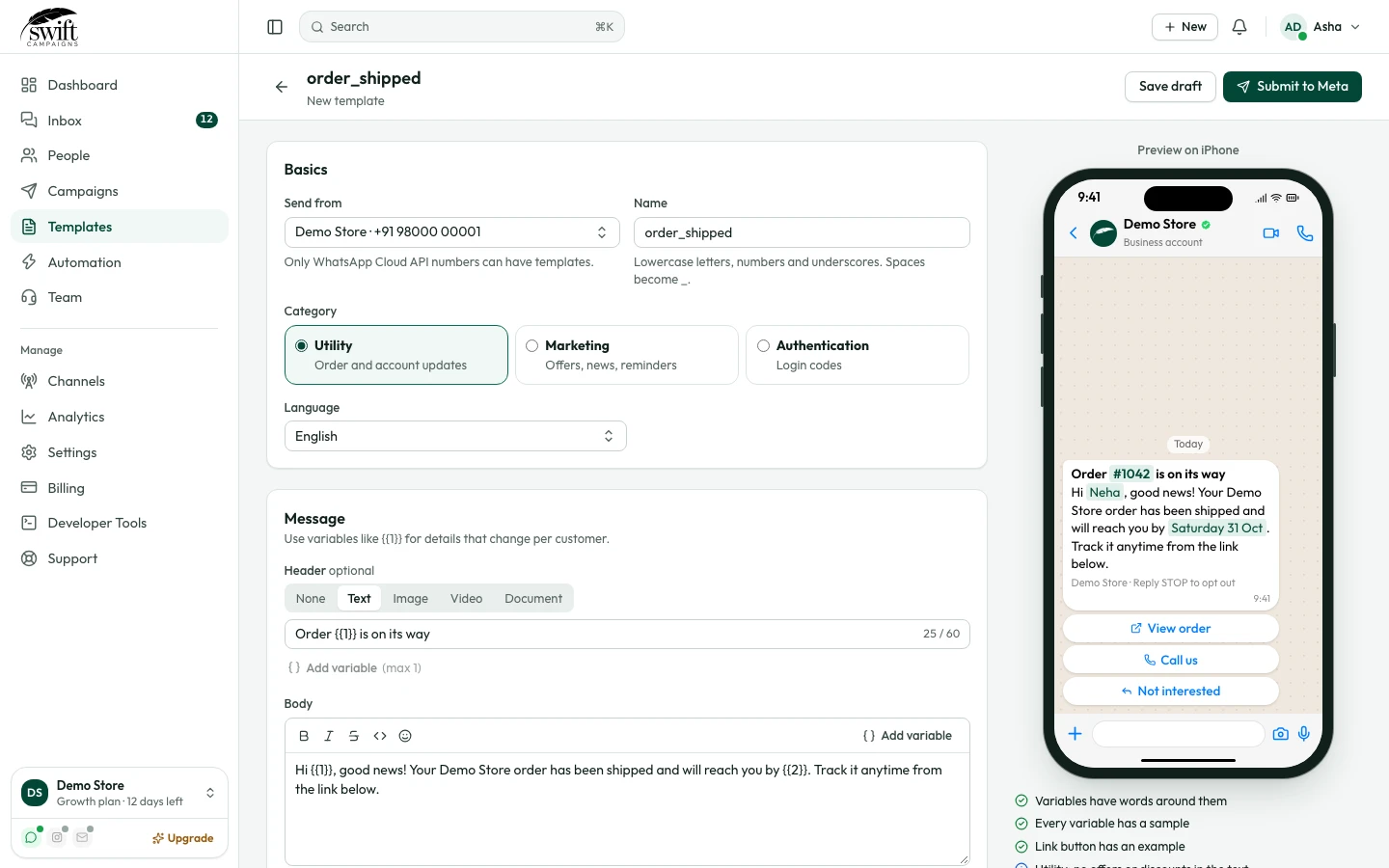
- 4
Submit for review
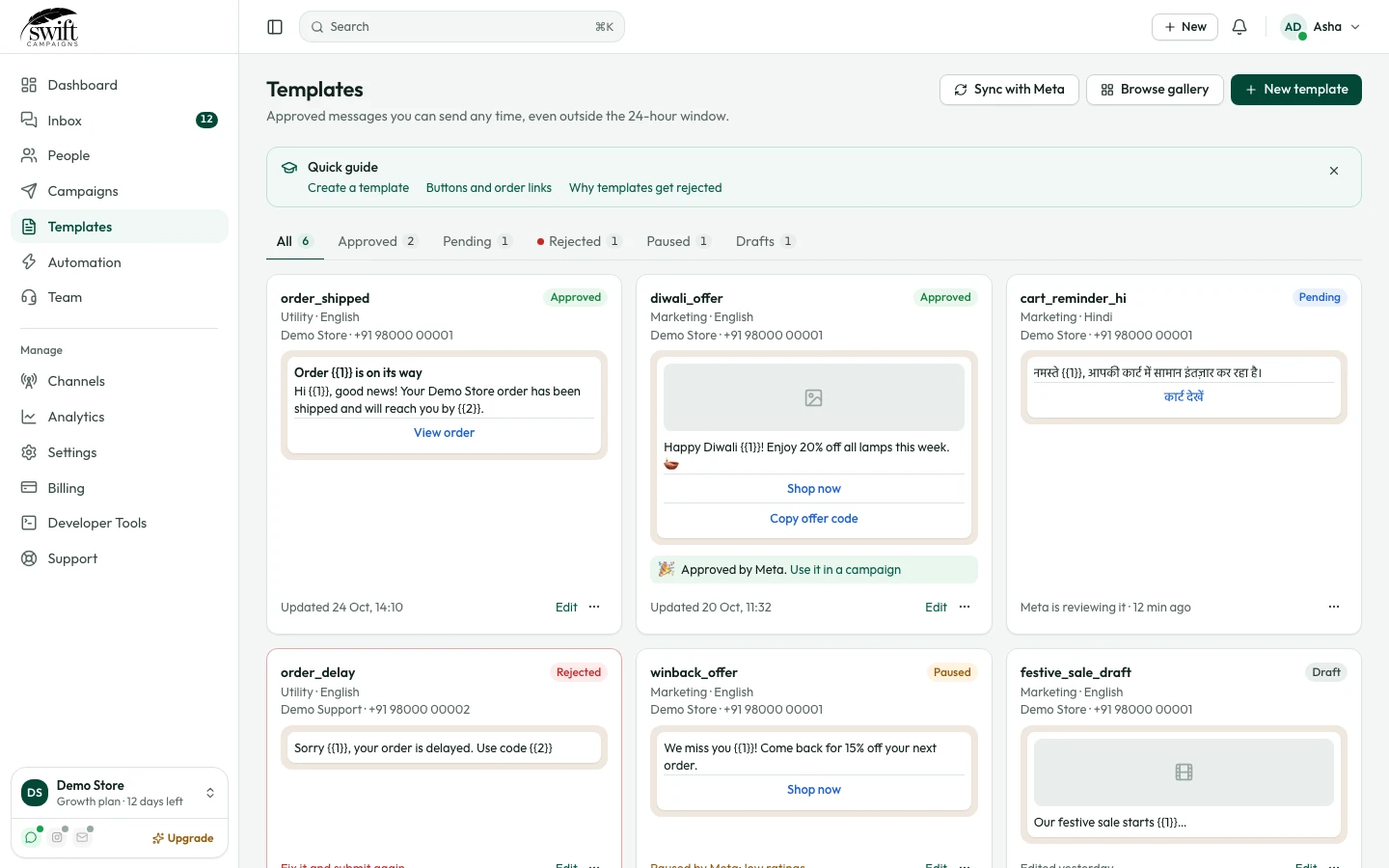
Click Create Template. Meta usually reviews it within minutes; the status changes to Approved in your template list.
Good to know
- A variable cannot be the very first or last thing in the body; put some words around it.
- Login codes need an Authentication template, which Meta unlocks once your number is past its first messaging tier.