
How to add buttons and order links to a template
Add quick replies, a call button or a link that opens the customer's own order.
Templates and campaigns3 steps·2 min read
- 1
Scroll to Buttons
While creating a template, scroll to Buttons. You can add a call button, website buttons, a copy-code button or quick-reply (custom) buttons.
- 2
Add a website button
Click Visit website. If you have set a Store URL, the button text and the link
yourstore.com/order/{{1}}are filled in for you. Add a sample value such asORDER-1001.app.swiftcampaigns.com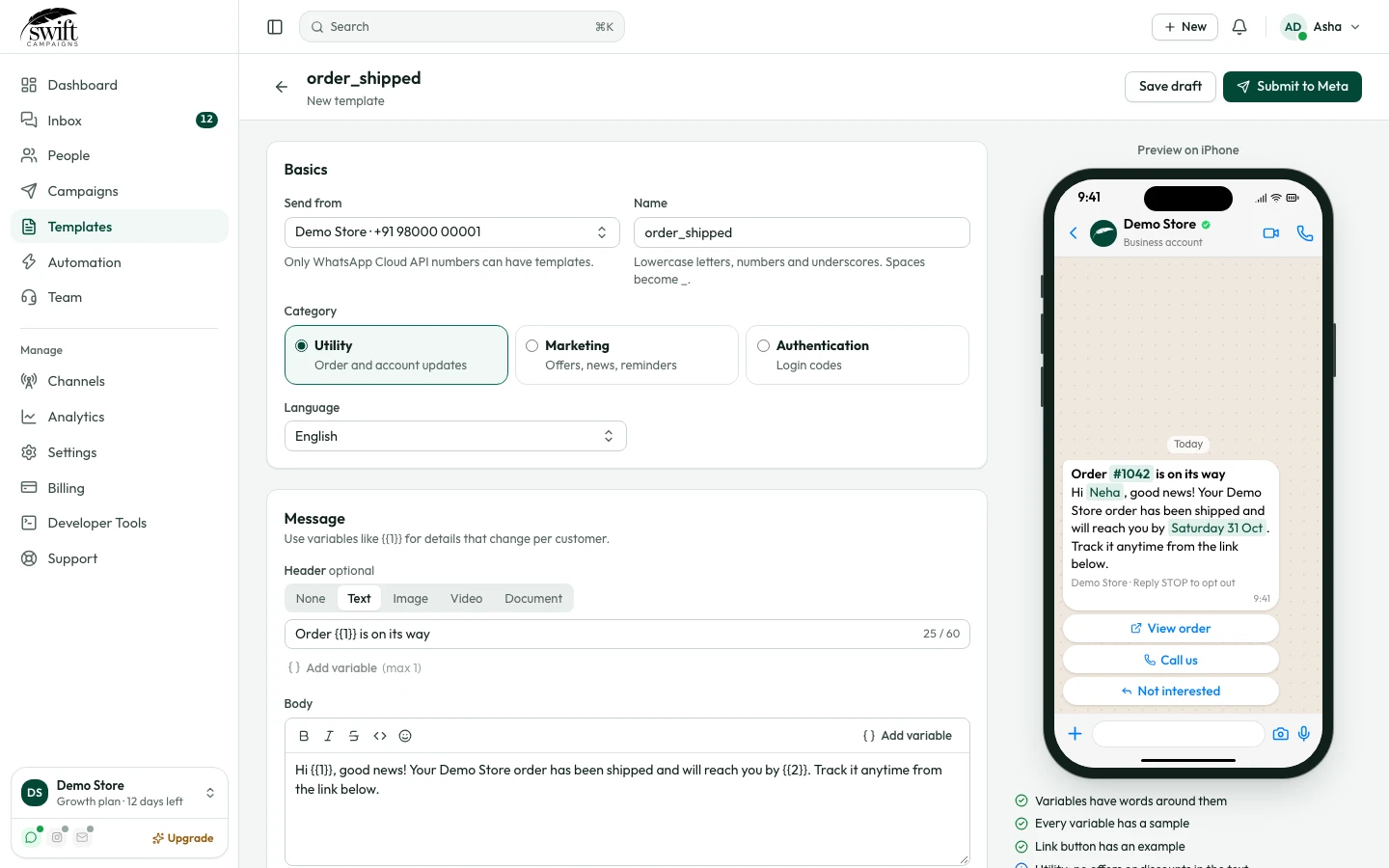
- 3
Fill the link when sending
When you send the template, give each customer's order number as the button value, so the button opens their own order page.