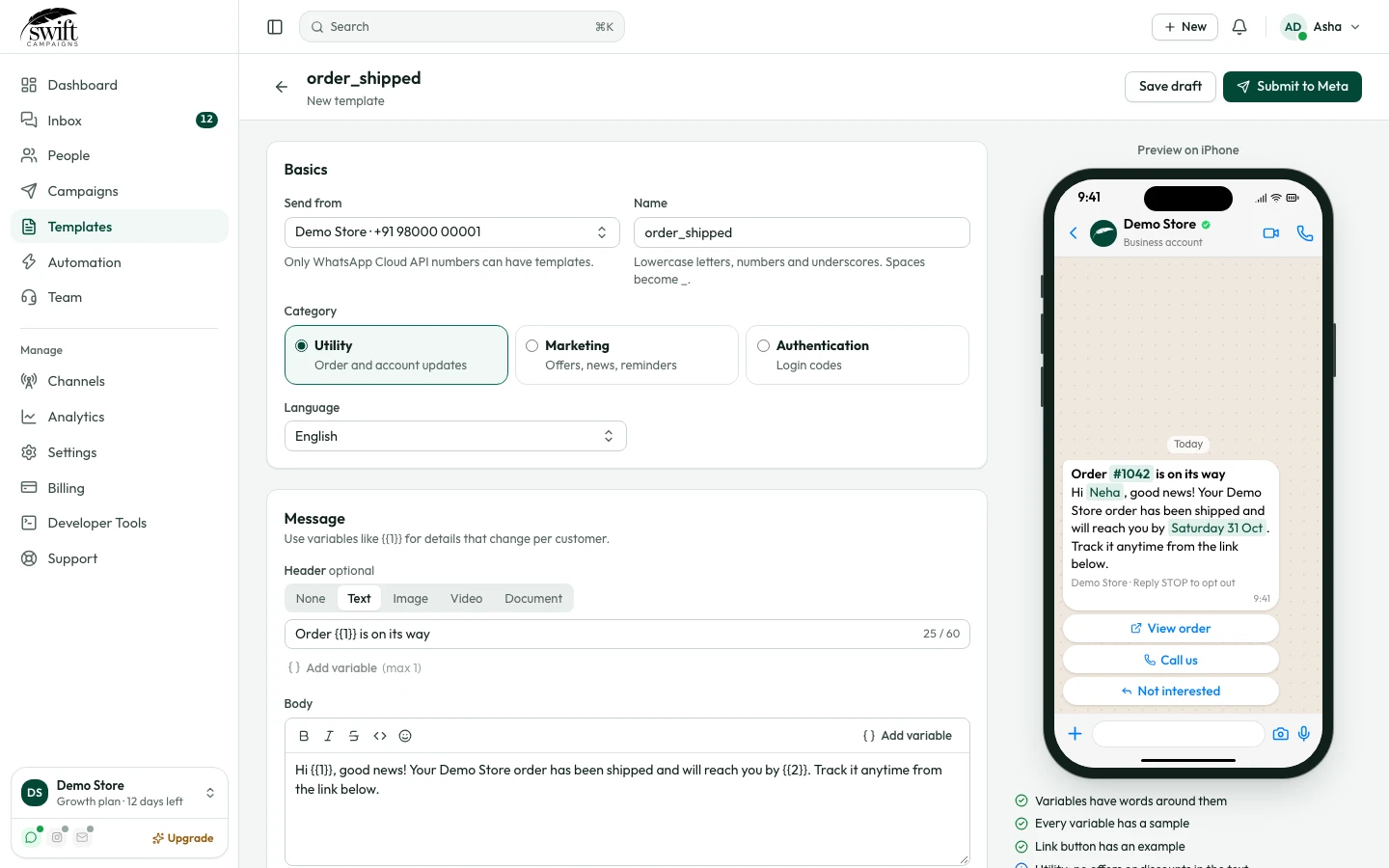
Set your Store URL for order links
Save your website once and every template link button can use it.
Getting started3 steps·1 min read
- 1
Open General Settings
Go to Settings → General Settings.
- 2
Enter your Store URL
Type your website, for example
https://yourstore.com, in Store URL and click Save.app.swiftcampaigns.com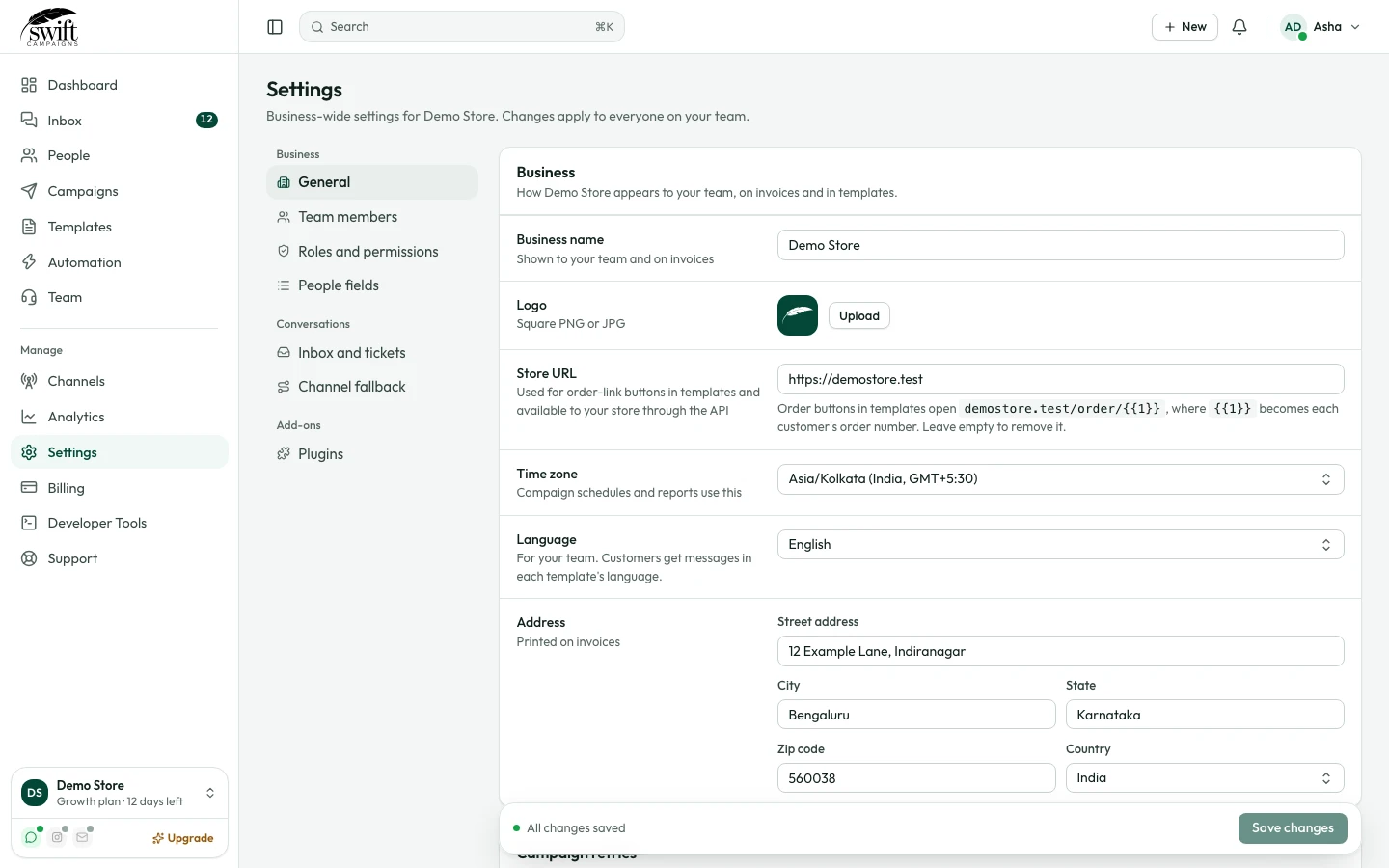
- 3
Use it in templates
When you add a Visit website button to a template, Swift Campaigns fills in
yourstore.com/order/{{1}}for you. Your developers can also read it from the API (GET /api/organization).app.swiftcampaigns.com